
Open the event, click Volunteers in the menu on the right, and you will see every role with the people who have signed up for it. From there you can confirm or decline each signup, and add more roles.
Volunteers can also sign up other people (a partner, a teenage child), so you may see signups with notes attached.
Where to find your volunteers
- From your admin dashboard, click Events, then click the event.
- Click Volunteers in the menu on the right hand side.
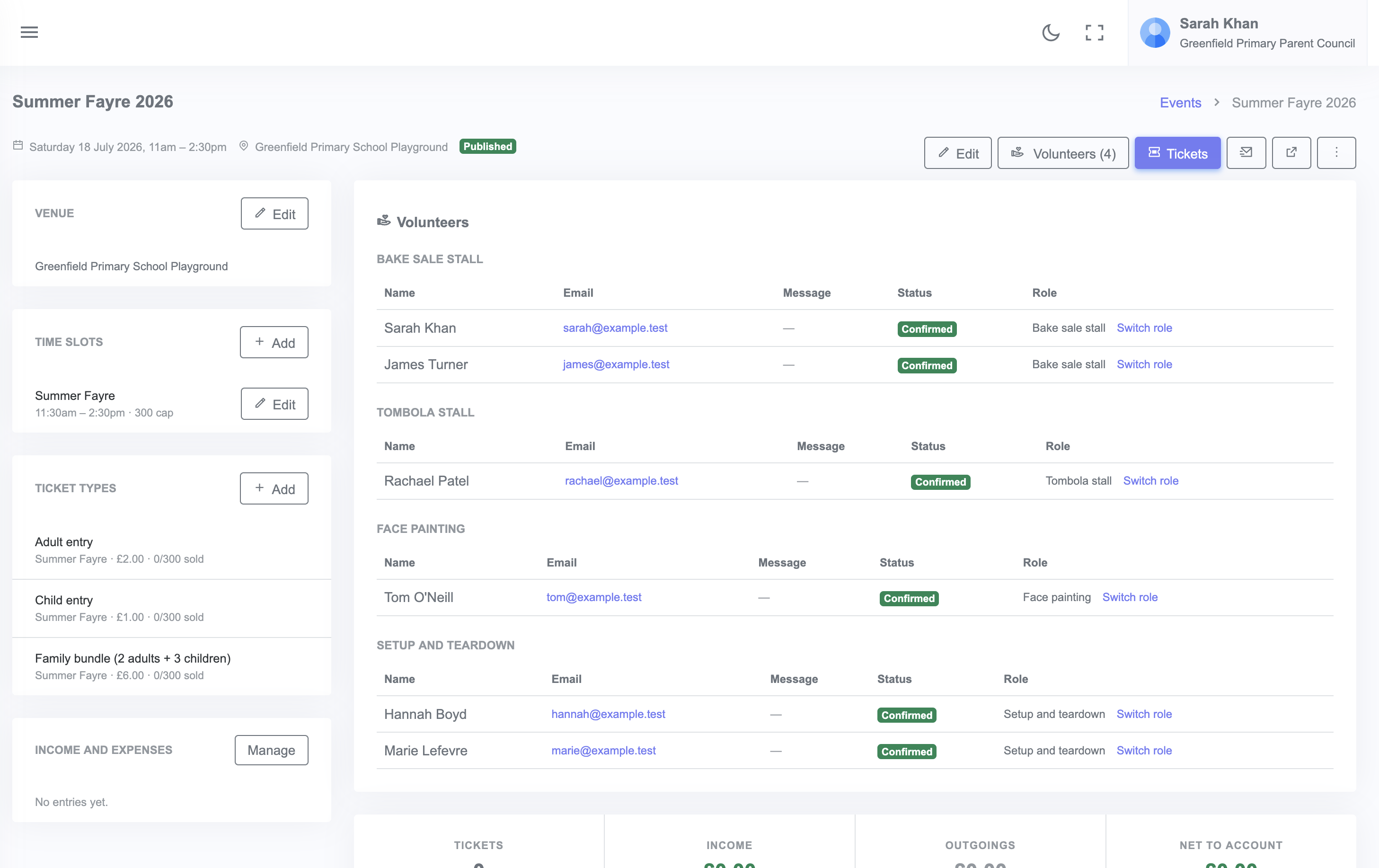
Each role shows its times and how many helpers you still need.
Each role shows its name, the times it covers and how it is filling up, either 3 of 5 or Full. Under it are the people who have signed up, each with their status. A role nobody has taken yet says No sign-ups yet.
The pencil next to a role edits it, and + Add role at the top adds another.
Confirming and declining
New signups arrive as Offered, unless your community has automatic confirmation turned on, in which case they go straight to Confirmed.
While a signup is still offered you get two buttons:
- Confirm accepts them, and they count towards the number the role needs.
- Decline turns them down and frees the slot for someone else.
A declined signup is not deleted. It moves into a withdrawn or declined sign-ups section at the bottom of the list, where a Reconsider button puts it back to offered if someone changes their mind.