
A ticketed event lets supporters buy tickets online with their card. Use it for school discos, summer fayres, quiz nights, and any event with a paid entry. Each ticketed event has one or more ticket types, optional time slots, and an optional volunteer signup.
You need Stripe connected to take payment. If you have not done that yet, follow the Connect Stripe guide first.
Steps
- From your admin dashboard, click Events in the sidebar.
- Click + New event in the top right.
- Choose Ticketed event. If you are running a disco, summer fayre, film night or quiz, start from a template instead and the sessions, tickets and volunteer rota are set up for you.
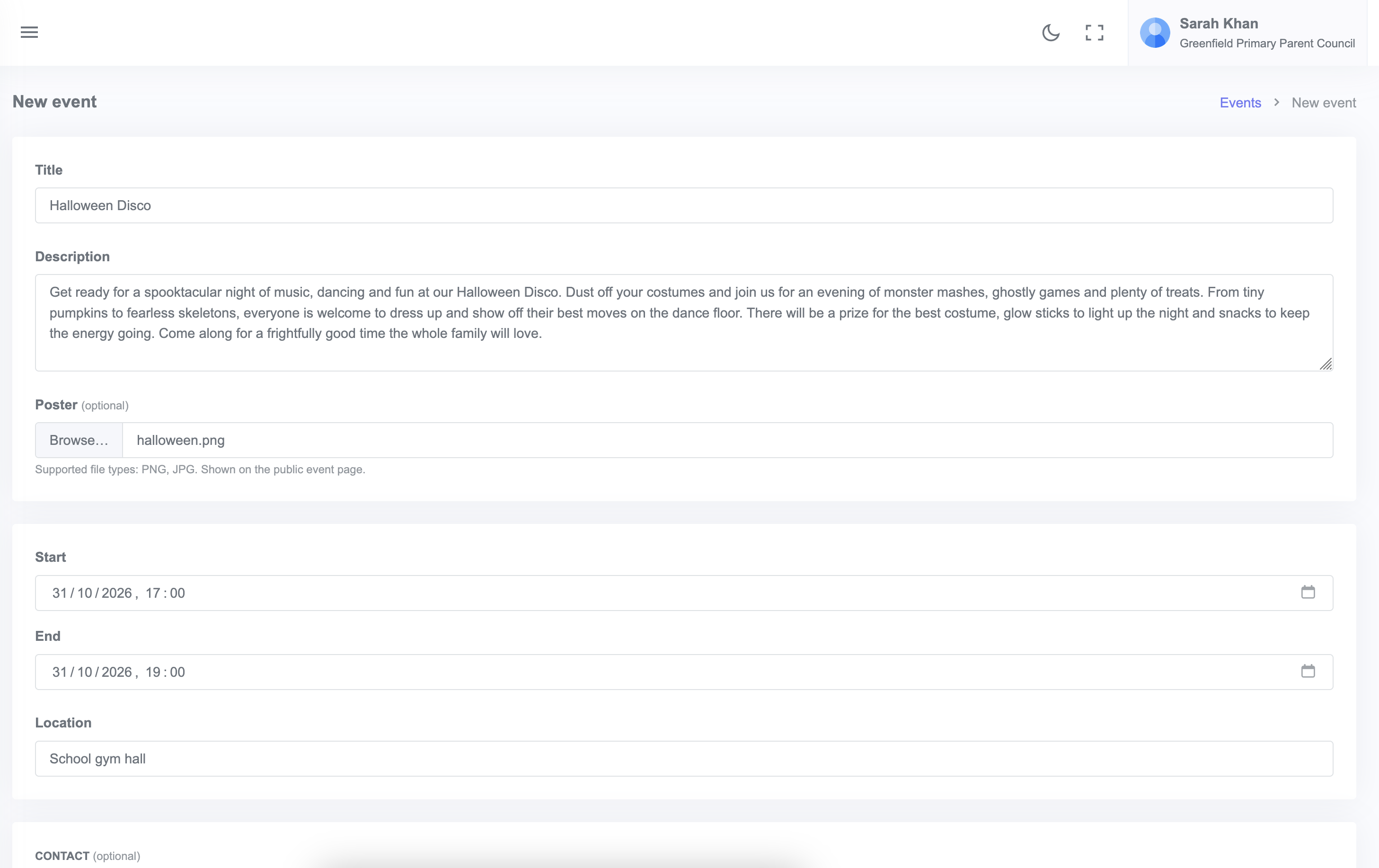
- Fill in the event details: title, date, location, description, and visibility (public or members only).
- Click Save. You will land on the event's admin page where you can add ticket types.
Adding ticket types
A ticket type is a category of ticket with its own name, price, and optional capacity.
- On the event admin page, scroll to Ticket types and click + Add ticket type.
- Enter the name (for example, "Adult entry"), the price, and optional max-per-order or total capacity.
- Click Save.
- Repeat for each ticket category. The Summer Fayre example uses Adult entry £2, Child entry £1, Family bundle £6.
Adding time slots
Time slots let you split a single event across multiple sessions (for example, a Christmas Disco with separate slots for younger and older children). Each ticket can be tied to one or more slots.
- Scroll to Time slots on the event admin page.
- Click + Add time slot.
- Enter a name (for example, "Infants slot, P1 to P3"), start and end times, and an optional capacity.
- When adding ticket types, tick the slots they are valid for.
If your event is a single slot (most fayres, AGMs and discos), you only need one slot covering the full event window.
Mandatory tickets
If every attendee needs to buy a particular ticket type (for example, a £5 entry that every guest pays before they can buy extras), tick Mandatory on that ticket type. Buyers will be prompted to include at least one before they can check out.
Publishing the event
Once you are happy with the ticket types, click Activate at the top of the event page. The event goes live on its own page and is listed on your community page. You can copy the link to share anywhere.